BADGE DESCRIPTION

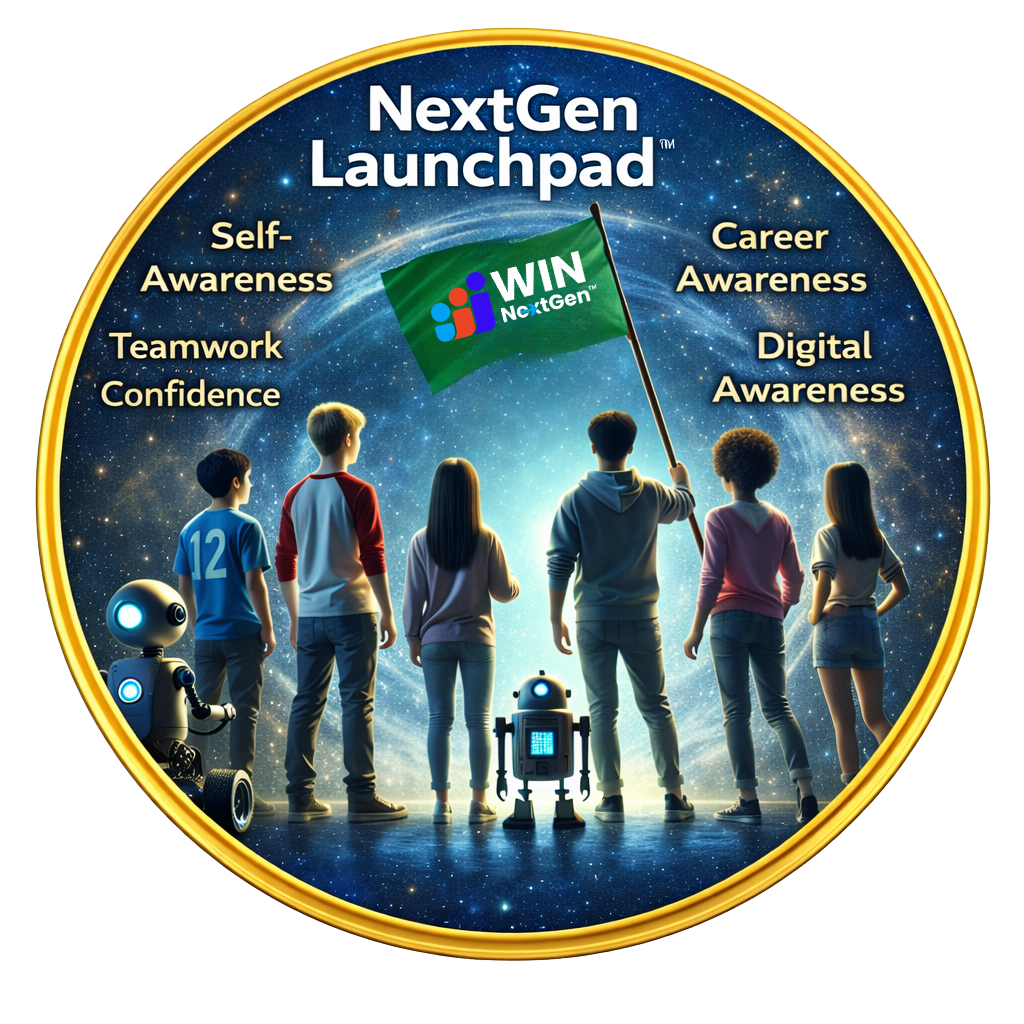
NextGen Launchpad™

Badge Description

Every journey starts with a first step, and the NextGen Launchpad™ badge is where future workforce readiness begins.

Designed for middle school learners, this badge introduces the foundational skills and awareness needed to explore opportunities, build confidence, and begin thinking about the future in a meaningful way.

In today’s rapidly evolving world, success is not just about what you know, but how you understand yourself, work with others, and explore new possibilities. The NextGen Launchpad™ badge helps learners begin developing these essential capabilities early, creating a strong foundation for future learning and career pathways.

By earning this badge, learners begin to:

  • Identify their interests, strengths, and personal potential
  • Demonstrate foundational teamwork and communication skills
  • Build confidence by trying new things and learning from experience
  • Explore career possibilities, including opportunities across the 3S Workforce™ -STEM, Supply Chain, and Skilled Trades
  • Understand how to navigate digital spaces responsibly and positively

This badge is not about having all the answers. It is about building curiosity, confidence, and a sense of direction.

As the entry point into the WIN-NextGen™ ecosystem, the NextGen Launchpad™ badge prepares learners to continue their journey into more advanced skill development, including the GT3S™ Core 10 and CoreFlex™ Durable Skills badges.


How the Badge Works

Step 1

Learners complete the NextGen Launchpad™ modules listed below, available on the WIN-NextGen™ platform:

Step 2

Learners earn GT3S™ Points for each completed module.

Step 3

When all five modules are completed, the learner automatically qualifies for the NextGen Launchpad™ Badge.

Step 4 The badge is issued digitally through the WIN-NextGen™ platform and can be shared or downloaded.
Frequently Asked Questions

How do I Opt-In to receive SMS (Text) messages?

First text the word JOIN to the following 2 numbers: 562-662-5714 and 701-773-4765. Second, under “Settings” (below your name on the top menu bar), Edit Your Preferences and put a check in the “SMS Opt-In” box.

How do I Opt-Out of SMS (Text) messages or Emails?

There are 2 ways. First way: Simply go to “Settings” (below your name on the top menu bar), Edit Your Preferences and uncheck the “SMS or Email Opt-In” box., Second way: You reply STOP to any SMS (Text) message and for Email, click the “Unsubscribe” link found at the bottom of any of our emails.

How do I change my Password?

You can reset your password two ways.

  1. If you are logged in: Go to “Settings” and use the Reset Password button on the left-hand menu.
  2. If you are not logged in or forgot your password: Use the “Forgot Password” link on the Login page.

If you are unable to reset your password, please contact techsupport@win-nextgen.org

I tried changing my Avatar in the GT3S Learning HUB, but it doesn't work?

Some images may be too large or sized inappropriately. Try resizing your Avatar picture to 500 x 500 pixels. If you don’t have a tool to resize your picture, try the free Adobe resizer tool Here.

What is Group Enrollment?

Group Enrollment allows members to enroll in specific course groups and ALL of their courses, such as STEM – Cybersecurity as well as various Skilled Trades and Supply Chain groups. When these course groups become available, they will appear on the Group Enrollment page and you can enroll yourself into these groups and take the various courses. You will also receive a text message and/or email when these groups become available.

What is the GT3S Points Tracker?

The Tracker reflects the annual points accrued (based on your Quarter) for all four focus areas, as well as the aggregate total. It is an easy way to see where you are excelling and where you might need more work. Points reset at the beginning of each new WIN-NextGen™ Quarter.

What is WIN-NextGen™ Quarter

Your WIN-NextGen™ Quarter is the Quarter of the year in which you joined, expressed as QTR1, QTR2, QTR3, and QTR4. For example, if you joined WIN-NextGen™ in January through March, your WIN-NextGen™ Quarter would be QTR1. If you joined WIN-NextGen™ in April through June, your quarter would be QTR2, and so on. Your WIN-NextGen™ Quarter also controls your annual points accrual period. For example, if you’re a QTR2 member, you accrue annual points from April of the current year to April of the next year. This allows all WIN-NextGen™ members to accrue points on an annual basis in a fair manner.

Where can I find my WIN-NextGen™ Quarter?

You can see your designated WIN-NextGen™ Quarter under “My Preferences” in the “Settngs” section of the website. Settings is located under your name in the upper right-hand menu.

How do I get credit for classes or other activities that aren't in my Learning Dashboard?

From the Learning HUB click on “Show More” under left-hand pane, then click on “External Activities”. There you can add many different types of activities that all have point values.

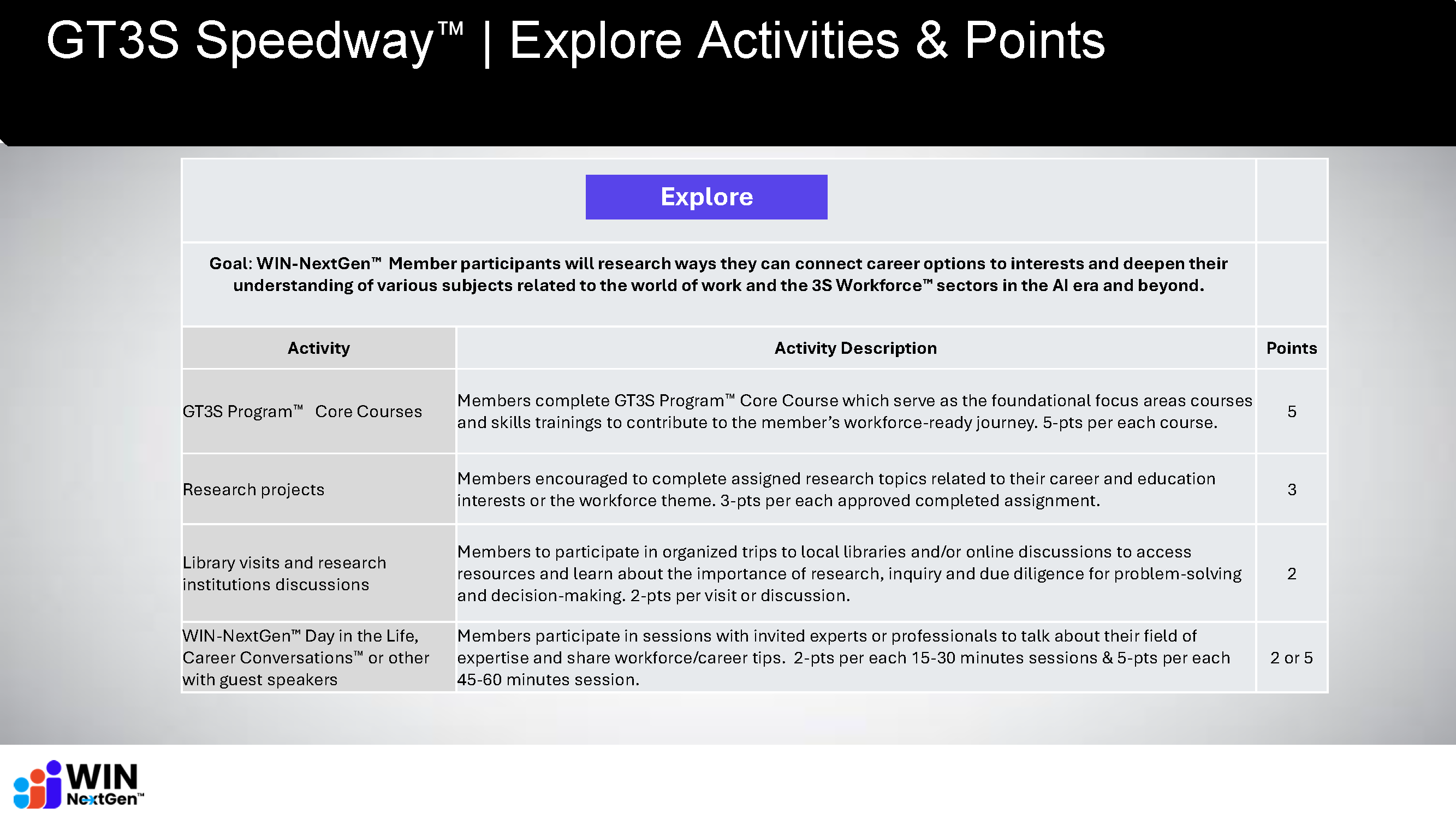
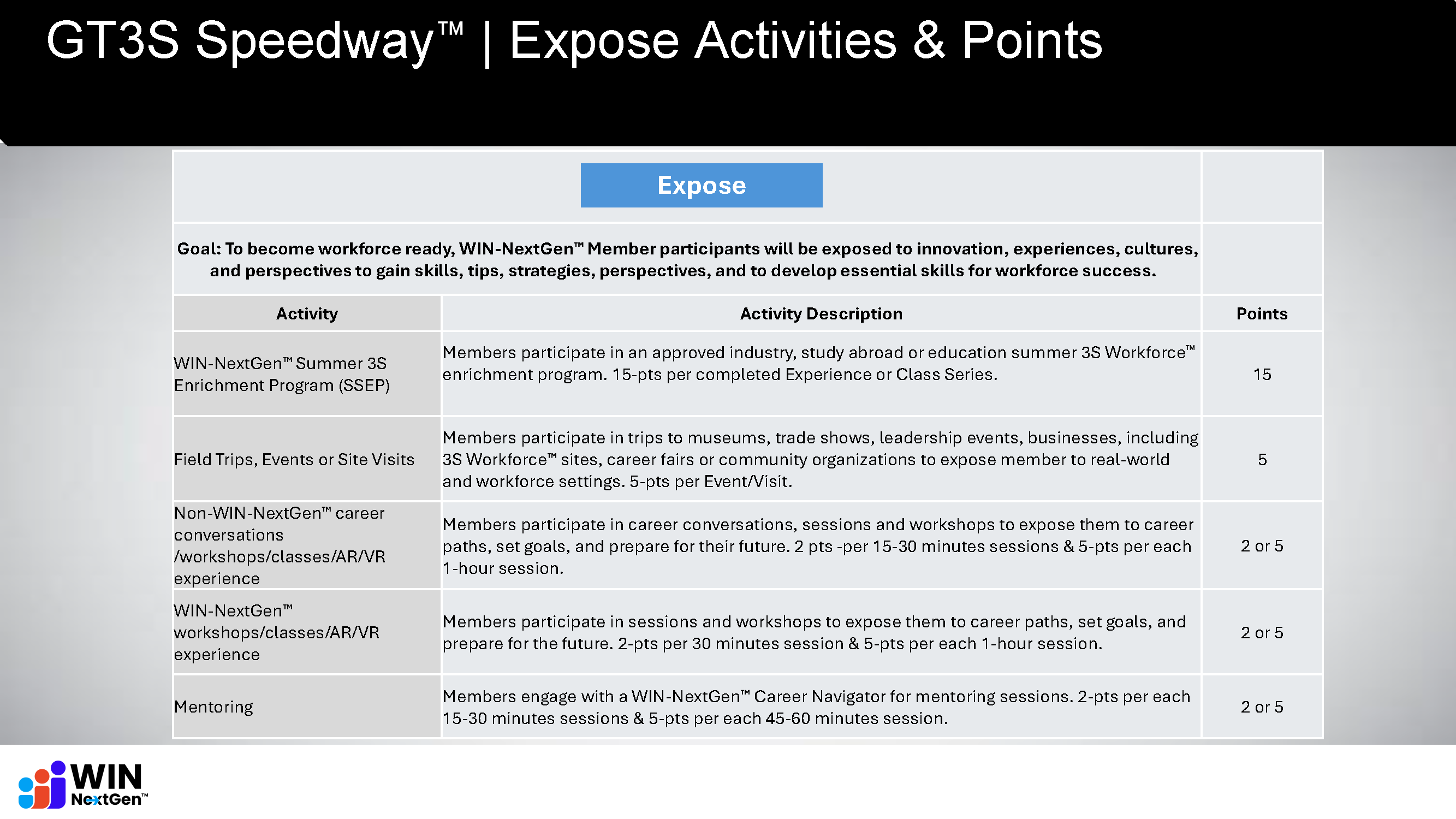
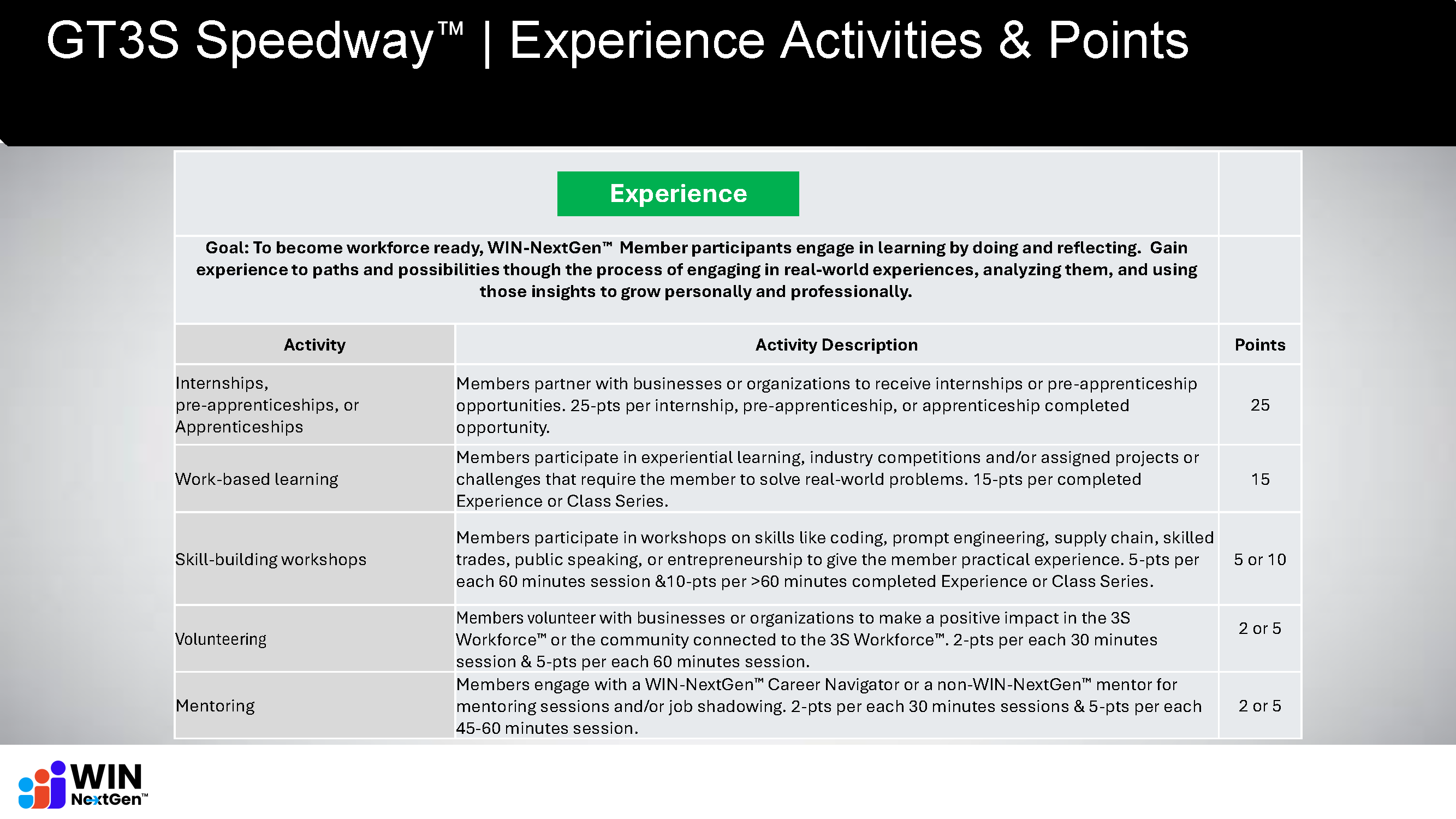
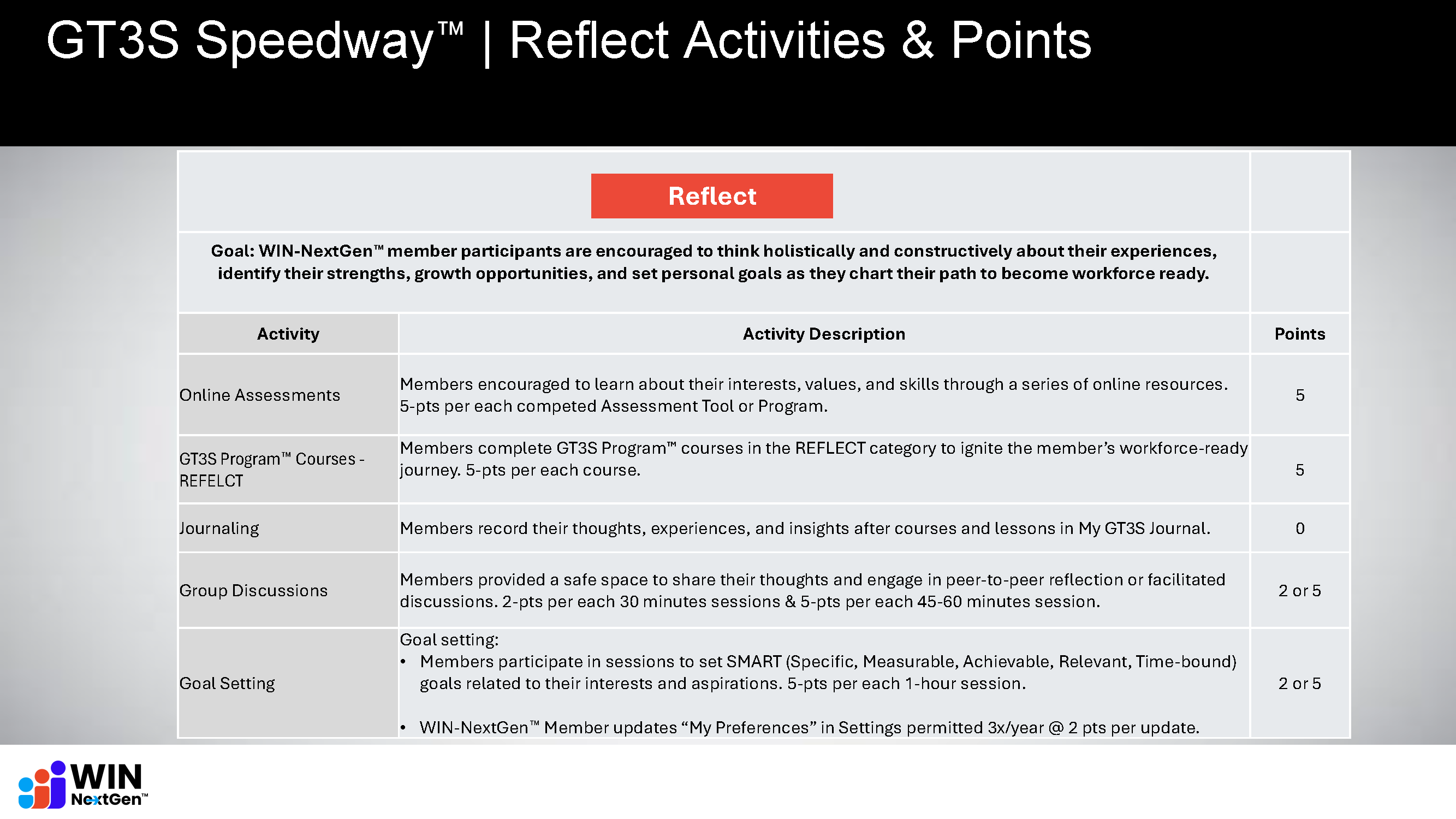
What are examples of the types of activities I can receive points for in each of the 4 GT3S™ Program Pillars: Reflection, Explore, Expose, Experience?
What is the "Team Message Board"?

The Team Message Board is for those members who are part of an organizational team such as a School or Business. General WIN-NextGen™ Members will not see messages there. Regular members receive SMS and Email notifications of events, courses, and other news.

Career in Finance Slide

Frequently Asked Questions

First text the word JOIN to the following 2 numbers: 562-662-5714 and 701-773-4765. Second, under “My Account”, Edit Your GAN Profile and put a check in the “SMS Opt-In” box.
There are 2 ways. First way: Simple go to “My Account”, Edit Your GAN Profile and remove the check in the “SMS Opt-In” or the “Email-Opt-In” box. Second way: You reply STOP to any SMS (Text) message and for Email, click the “Unsubscribe” link found at the bottom of any of our emails.
The easiest way is to go to “Settings” in the Learning Dashboard and click the Reset Password option.

Some images may be too large or sized inappropriately. Try resizing your Avatar picture to 500 x 500 pixels. If you don’t have a tool to resize your picture, try the free Adobe resizer tool Here.

Group Enrollment allows members to enroll in specific course groups such as STEM – Cybersecurity as well as various Skilled Trades and Supply Chain groups. When these course groups become available, they will appear on the Group Enrollment page and you can enroll yourself into these groups and take the various courses. You will also receive a text message and/or email when these groups become available.

The Tracker reflects the annual points accrued (based on your Quarter) for all four focus areas, as well as the aggregate total. It is an easy way to see where you are excelling and where you might need more work. Points reset at the beginning of each new GAN Quarter.

Your GAN Quarter is the Quarter of the year in which you joined, expressed as QTR1, QTR2, QTR3, and QTR4. For example, if you joined GAN in January through March, your GAN Quarter would be QTR1. If you joined GAN in April through June, your quarter would be QTR2, and so on. Your GAN Quarter also controls your annual points accrual period. For example, if you’re a QTR2 member, you accrue annual points from April of the current year to April of the next year. This allows all GAN members accrue points on an annual basis in a fair manner.

You can see your designated GAN Quarter under “Edit GAN Profile” in the “My Account” section of the website.
Go to your Learning Dashboard either from “My Account” or the “GAN Girl Hub”, then click on “Show More” under left-hand pane, then click on “External Activities”. There you can add many different types of activities that all have point values.
The Team Message Board is for those members who are part of an organizational team such as a School or Business. Regular GAN Members will not see messages there. Regular members receive SMS and Email notifications of events, courses, and other news.